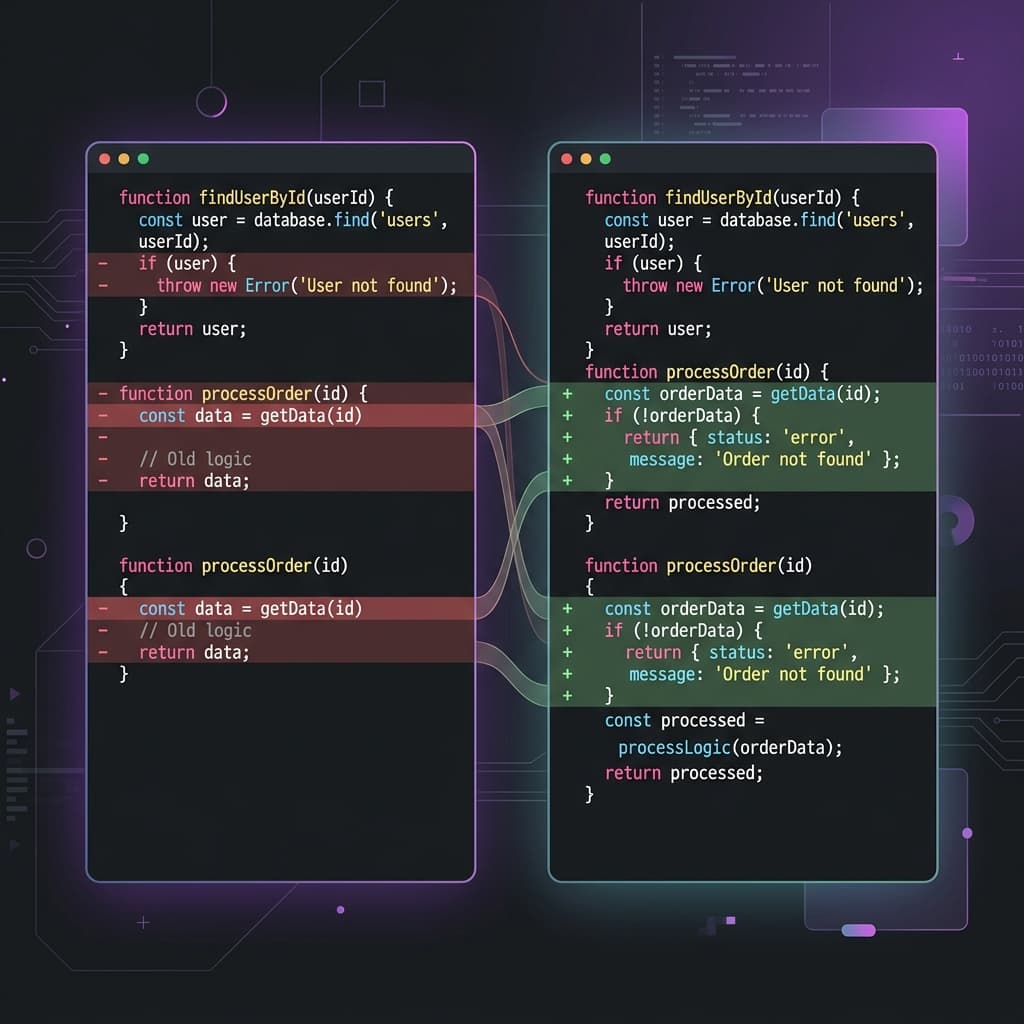
Comparing two files is one of the most common tasks in software development. Whether you're reviewing a config change, debugging a regression, or merging contributions from a teammate, you need a reliable diff tool that shows you exactly what changed.
This guide covers everything you need to know about comparing files online - from basic text diffing to advanced features like character-level highlighting and merge support.
Why Compare Files Online?
While tools like diff, git diff, and desktop apps like Beyond Compare are powerful, online diff tools have distinct advantages:
- Zero install: Open a browser tab and start comparing instantly
- Cross-platform: Works on Windows, Mac, Linux, Chromebook, even phones
- Shareable: Send a comparison link to a teammate for review
- Privacy: Modern tools process everything client-side
Step-by-Step: Comparing Two Files
1. Choose Your Tool
For this guide, we'll use BytesBit Compare, which offers side-by-side diffing with character-level highlighting, merge support, and syntax highlighting for 20+ languages.
2. Load Your Files
You have three options for loading content:
- Paste: Copy-paste text directly into the left and right panels
- Drag & drop: Drop files onto either panel
- Open file: Use the file picker from the panel header menu
3. Read the Diff
The diff view uses color coding to show changes:
- ■ Red lines - removed (only in left file)
- ■ Green lines - added (only in right file)
- ■ Yellow highlights - modified (changed characters within a line)
- ■ Blue lines - moved (same content, different position)
4. Navigate Changes
Use the center column's Prev and Next buttons (or Alt+↑ / Alt+↓) to jump between hunks. The counter shows your current position (e.g., "3/7").
5. Merge Changes
Click the arrow markers in the gutter to merge individual hunks or single lines between panels. With BytesBit, merges are undo-safe - press Ctrl+Z to revert any merge.
Side-by-side diff with character-level highlighting, merge support, and syntax highlighting. Free and private.
Open Compare Tool →Advanced Features to Look For
Character-Level Highlighting
Basic diff tools only highlight entire lines. Better tools highlight the specific characters that changed within a line - critical for spotting subtle changes like a single-character typo or a modified URL parameter.
Moved Line Detection
When you reorder functions or move a block of code, basic diff tools show it as a deletion plus an addition. Advanced tools detect the move and display it distinctly, reducing visual noise.
Manual Alignment (Anchors)
Sometimes the automatic alignment gets confused - especially with heavily restructured files. Manual alignment lets you right-click a line and "anchor" it to a corresponding line on the other side, forcing the diff algorithm to use that as a reference point.
Syntax Highlighting
Comparing plain text is fine, but comparing .py, .tsx, or .sql files is much easier with language-aware syntax highlighting. Look for tools that auto-detect the language from the file extension.
Common Use Cases
- Code review: Compare a PR's changes before approving
- Config debugging: Diff staging vs. production config files
- Database migrations: Compare schema dumps before and after
- Content editing: Track changes between document versions
- API response diffing: Compare expected vs. actual JSON responses
Conclusion
Online file comparison tools have come a long way. With features like character-level highlighting, undo-safe merging, and shareable links, they're now viable replacements for desktop diff tools in many workflows. Try BytesBit Compare for your next diff - it runs entirely in your browser and supports everything described in this guide.